
04 / Video Studio
Reviewing and refining a social reel in Video Studio
When is a reel actually ready to become the media for a post?
Published by Mobilify It, built by UpCode Studios—the team also behind The Social Scheduler (SALT Social Media). This is a first-party product showcase, not an independent review. Workflow examples are illustrative; no customer results are claimed.
A playable preview is not always a finished video. Timing, music, voiceover, and captions need to be reviewed together, and a changed version must be rendered before it can replace the original post media. The Social Scheduler’s Video Studio makes those stages explicit. This walkthrough explains what to check at each point.
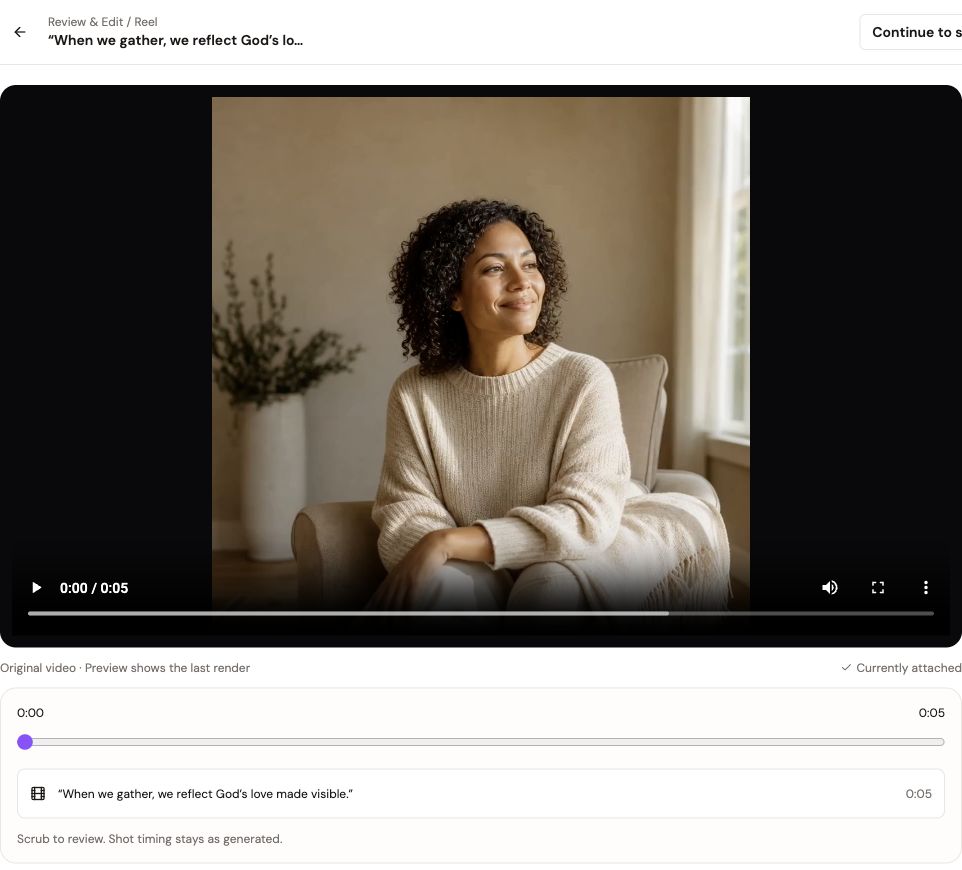
The starting problem: preview and export get confused
Consider an illustrative business preparing a short service demonstration. The source footage is available, but the message needs a clearer opening and a better ending. Watching an editor preview may suggest the changes are complete even though a final output has not been created.
Treat the workflow as a sequence of decisions: inspect the source, make edits, review the preview, render the version, and deliberately apply it. This study is a product walkthrough, not proof of customer engagement or revenue.
What Video Studio supports
The public feature page describes opening an unpublished reel from the scheduler or starting a new video in Video Studio. Users can play and scrub the source, work with supported timeline items, and prepare music, voiceover, or captions in the editing workspace.
The documentation distinguishes visual order from shot playback timing and describes video, image, text, and audio elements. Check the current product for the controls available to your media type rather than assuming every professional editing feature is included.
Review the message before polishing the effects
Play the source from beginning to end. Identify what a viewer should understand in the opening seconds and what action belongs at the end. Adjust supported timeline elements, then review captions, audio, and visual timing as a complete message.
Watch once with sound and once without it. Check whether text remains visible long enough to read, whether captions match the intended wording, and whether important content is placed where the destination’s controls will not obscure it. Rights to footage, music, and voices must be checked separately.
Render deliberately and apply the right version
Video Studio’s documentation states that a local timeline preview is not an export. Rendering requires a cost review and confirmation, and the completed version must be explicitly applied to the post. The original source remains available while edits and versions are reviewed.
The feature page also says published reels are view-only, while unpublished drafts can be edited. Make corrections before publication where possible, and verify the media attached to the draft after applying a rendered version.
Connect the reel to a usable next step
A reel can explain an offer but the linked website still needs to support it. Test the destination on a phone, including any enquiry form, booking button, or checkout. Do not assume that a good-looking video resolves problems further along the visitor journey.
For a real production case study, record the source, edits requested, rendering cost, review decisions, and the final version applied. Performance claims would additionally need reliable before-and-after data. None of those measured customer outcomes are invented in this showcase.
Before you put this workflow into use
- Check footage, music, and voice permissions.
- Review playback with and without sound.
- Confirm rendering cost before generating output.
- Apply and verify the finished version before scheduling.
Product sources and disclosure
This first-party walkthrough was prepared from the product’s public documentation and project screenshots, reviewed November 14, 2026. Example scenarios are illustrative, not reported customer outcomes. Consult current documentation for availability and limits.
The Social Scheduler’s Video Studio documentation